U-Poser ® Reference and Help Guide

    Web Site Updated 2-19-2011
    Current U-Poser version 2.5.4


Home
Overview
Size/Shape
Pose
Pose Mannequin
Save
Create (Still) BVH File
Upload File
Load
Import
Misc
Player (Animation)
Options
Mannequin
Advanced
Downloads
Help
POSE >> SAVE


Saving a pose is done in the same way as saving the Mannequin size/shape. Before saving, choose whether to include a zero reference frame for the pose (located near SAVE POSE). Toggle to green includes the zero reference frame; toggle to red excludes the zero reference frame. If the Hip or Root-Pos has been adjusted include the zero reference frame and lock all joints which are to be controlled by the pose. When the zero reference frame is excluded all joints will be controlled by the pose but the values for the Hip and Root-Pos will be ignored by SL during upload. Once toggled correctly click the SAVE POSE button and then OK.


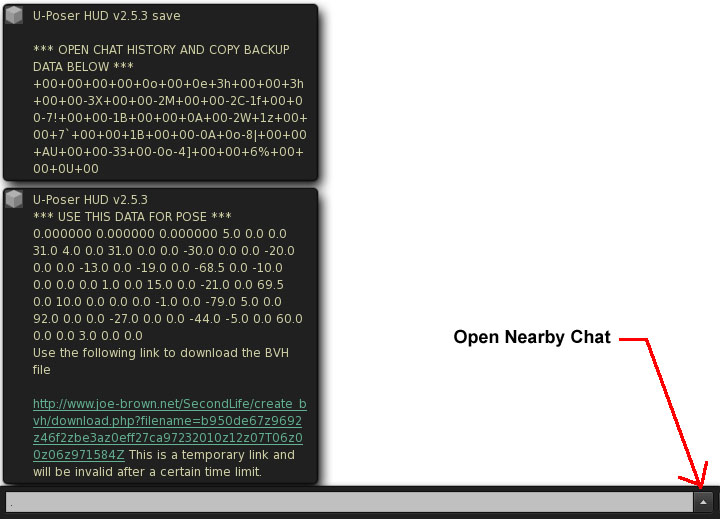
Data will be output to nearby chat.


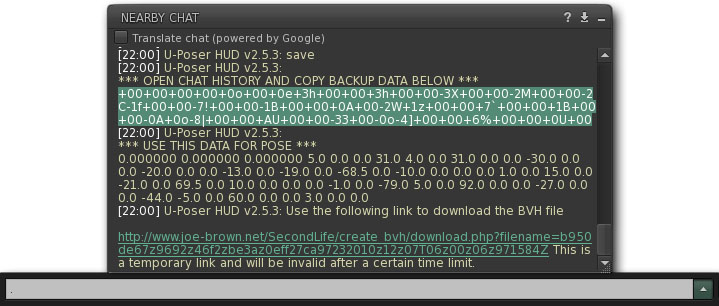
Open nearby chat and highlight the data containing the letters and numbers after "*** OPEN CHAT HISTORY AND COPY BACKUP DATA BELOW ***" and press Ctrl-C (or Command-C for Mac) to copy the data.


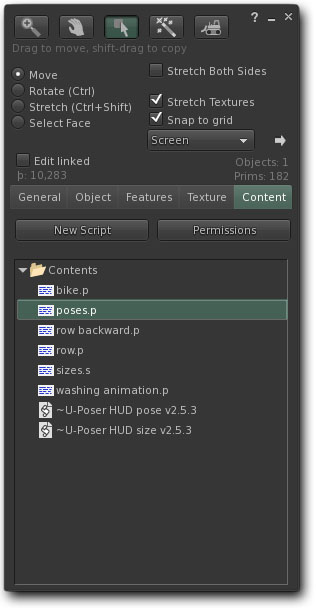
Right click the HUD (Command-click for Mac) and select Edit from the Menu (this may take a few seconds). When the build window opens select the Content tab. Click the Content tab in the build window to see a list of notecards and scripts. There are two types of notecards: those ending in ".s" (size data) and those ending in ".p" (pose backup data).

Formatting of the notecard follows the same rules as saving a size notecard. For this example open the "pose.p" notecard. Right click (Command-click for Mac) and select Open. One line is the pose description and the next line is the pose data. Important: Follow this format exactly or the script cannot read the data correctly. Click Save in the notecard and close it. The data can then be recalled for future use. Important: You can always add more notecards either by creating a new one in your inventory or by clicking the New Note button on the Options side of the HUD.

©Copyright 2011 U-Poser. All rights reserved. No part of this document may be reproduced without permission of U-Poser creator. Second Life, SL, and inSL are trademarks of Linden Research, Inc. U-Poser is not affiliated with or sponsored by Linden Research. Mac and Mac OS are trademarks of Apple Inc., registered in the U.S. and other countries. Windows is a registered trademark of Microsoft Corporation in the United States and other countries. All products are trademarks of their respective companies. Specifications subject to change without notice.